Scout Connect

How text opt-in works

Scout Connect texts a mobile number only after that person opts in. The box starts unchecked, and it is not part of any other agreement. Saving without it changes nothing: messages still go by email.

An adult ticks the box for their own number. A parent or guardian ticks it for a youth. When text verification is on, Scout Connect then texts a one-time 6-digit code to that number. The opt-in counts only after the correct code is entered. Reply STOP to opt out. Reply HELP for help. The HELP reply includes jason@collectiveinnovations.net.

Read the SMS Terms and the Privacy Policy.

1. The box starts unchecked
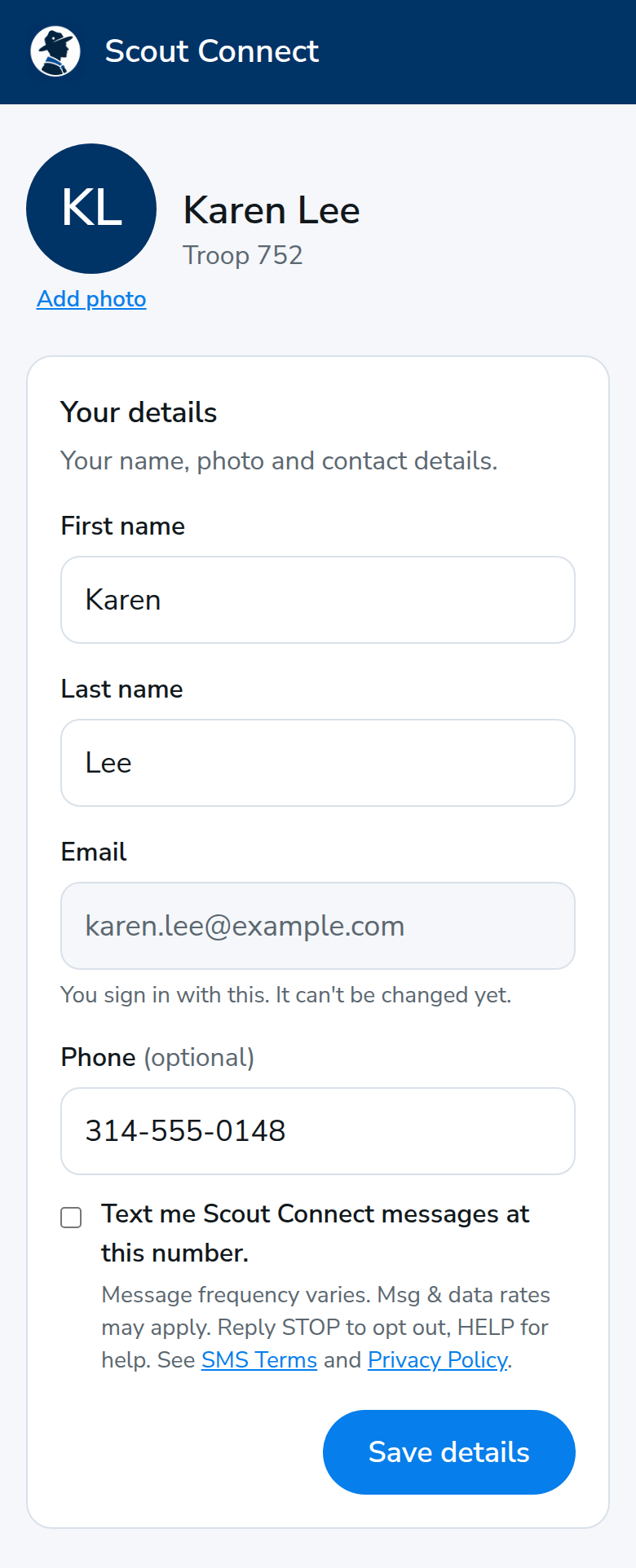
Karen Lee's profile. Her phone number is filled in and the text opt-in box is unchecked, with the message-rate disclosure underneath.
On the profile, the phone field shows the opt-in only after a number is entered. It is unchecked until the person ticks it. https://scoutconnect.org/opt-in/profile-unchecked.png

2. The person ticks it

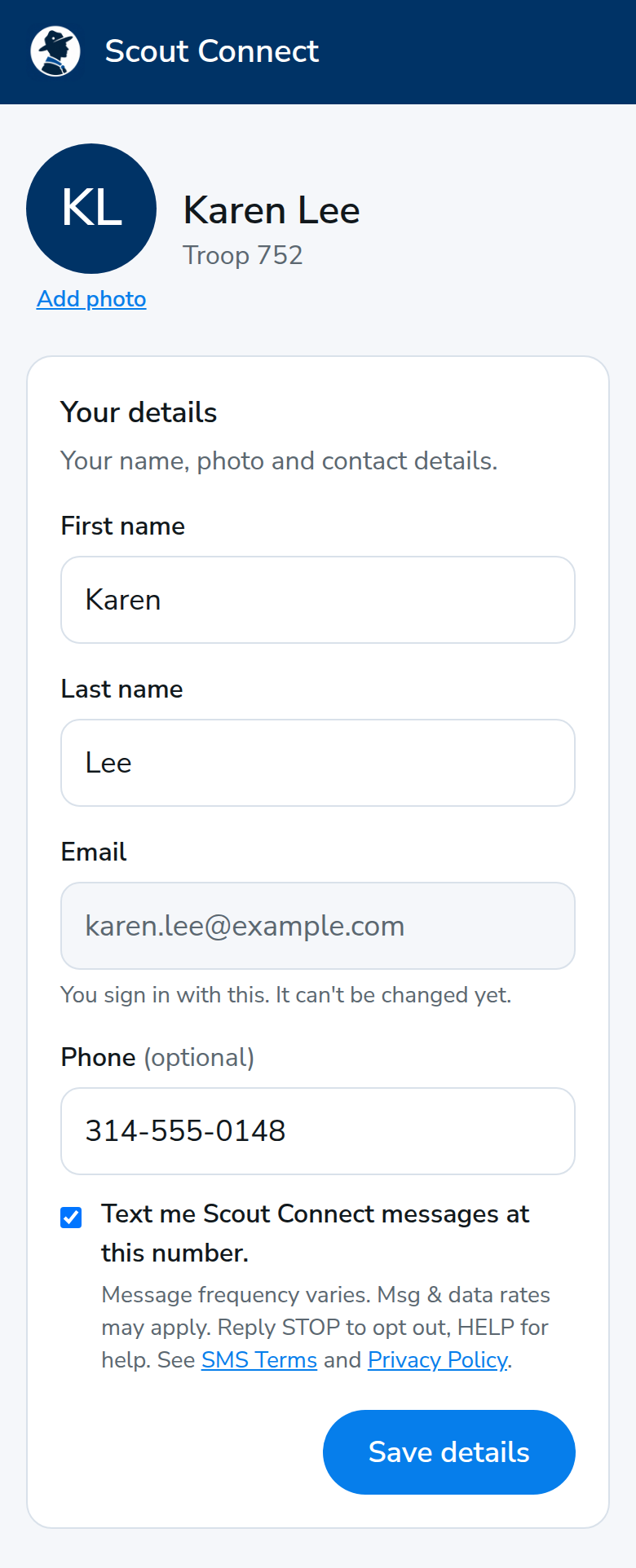
The same profile with the box checked: Text me Scout Connect messages at this number, plus the disclosure and links.
Ticking the box is optional and is saved on its own. The disclosure sits directly under the label, with links to the SMS Terms and the Privacy Policy. https://scoutconnect.org/opt-in/profile-checked.png

3. A code confirms the number

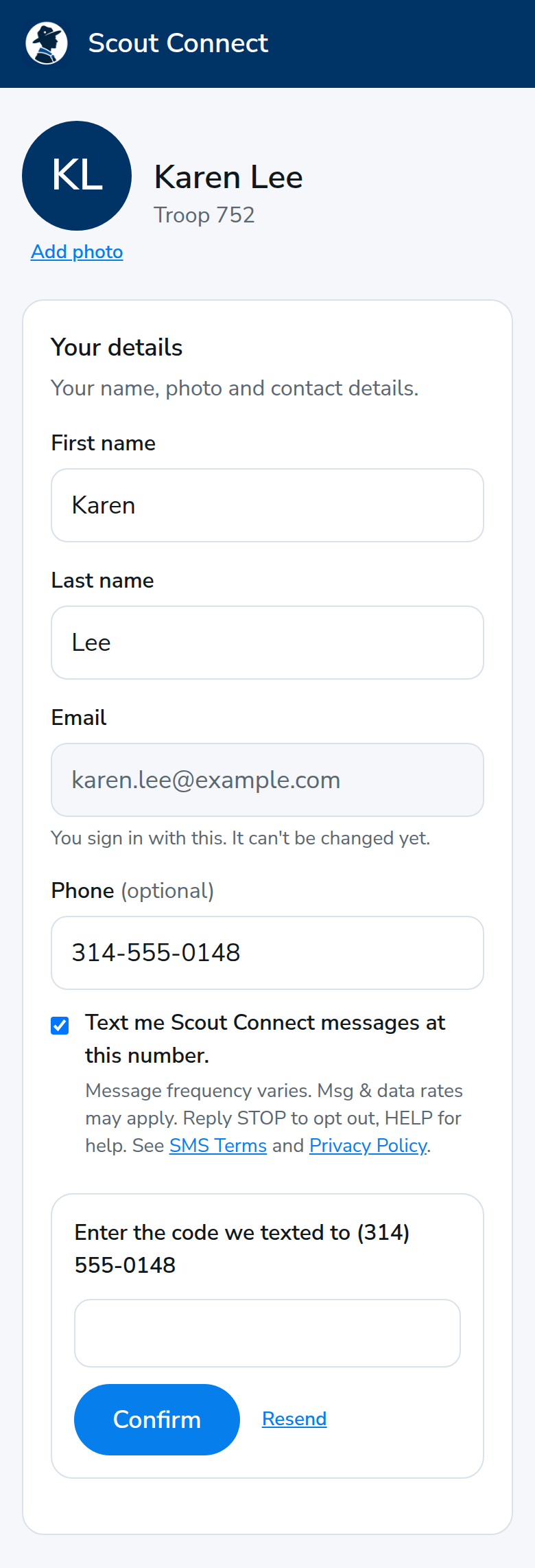
A code entry screen that says Enter the code we texted to (314) 555-0148, with Confirm and Resend.
After the box is saved, Scout Connect texts a 6-digit code. The opt-in stays pending until that code is entered. Resend asks for another code. https://scoutconnect.org/opt-in/code-entry.png

4. A guardian opts in a youth

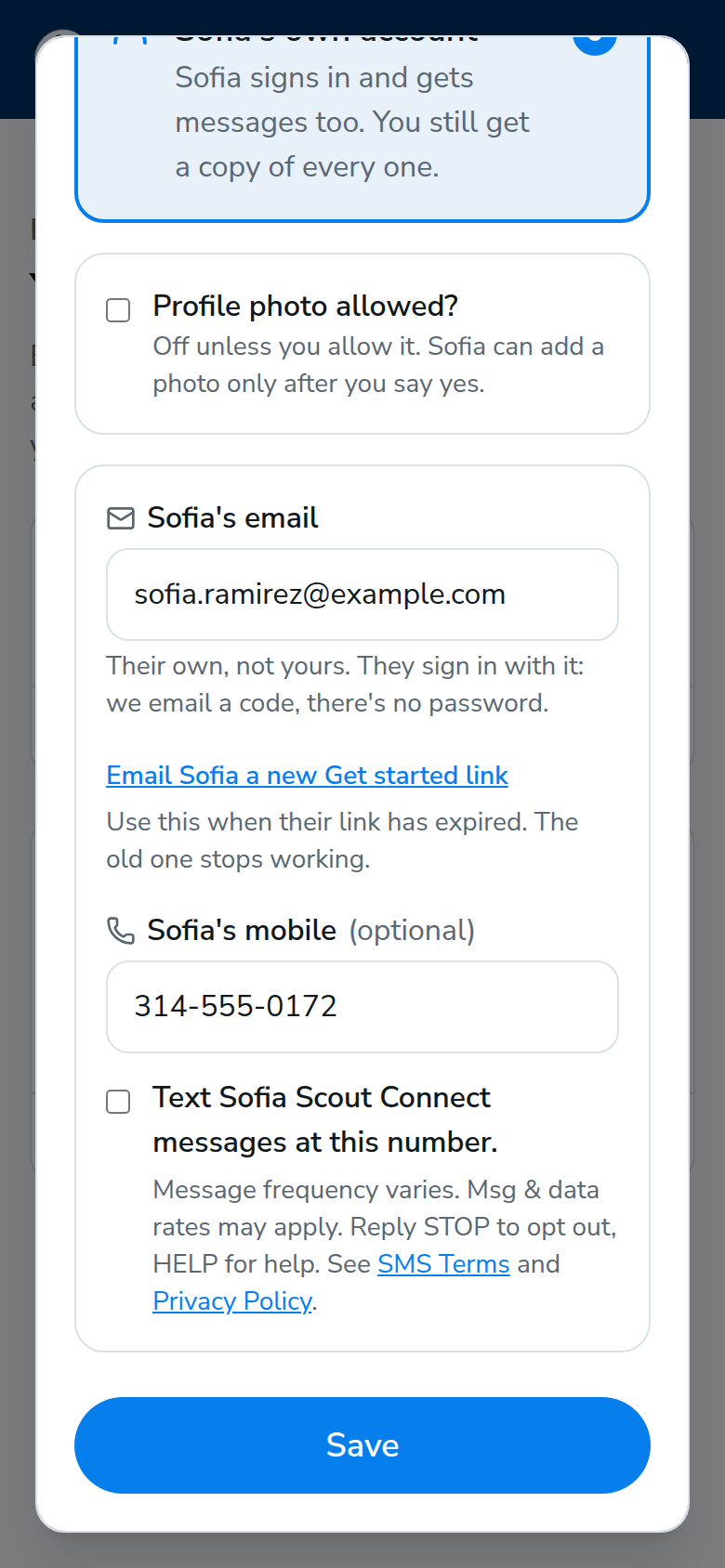
Family setup for Sofia Ramirez. Her mobile number is filled in and the box Text Sofia Scout Connect messages at this number is unchecked.
In family setup, a guardian consents for a youth's own mobile number. The box uses the youth's first name and starts unchecked. https://scoutconnect.org/opt-in/scout-opt-in.png